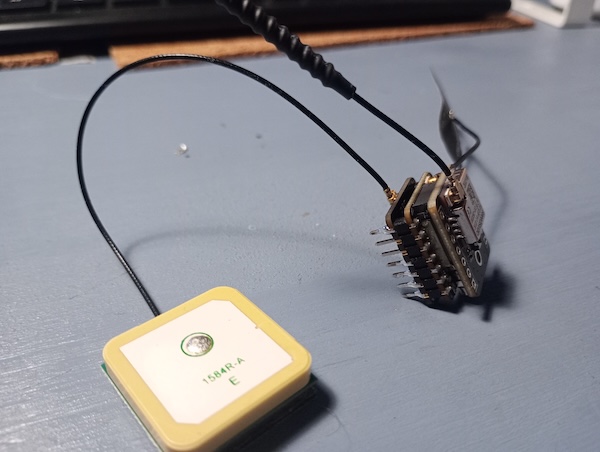
Introduction
This post will cover the following:
- Connecting the Seeed Studio L75K GNSS module to a Seeed Studio ESP32-S3 development board
- Soldering
- Antennas
- Meshtastic setup
Connecting the GNSS module
This is all written assuming that your ESP32-S3 has header pins already attached. If not, do that as described here
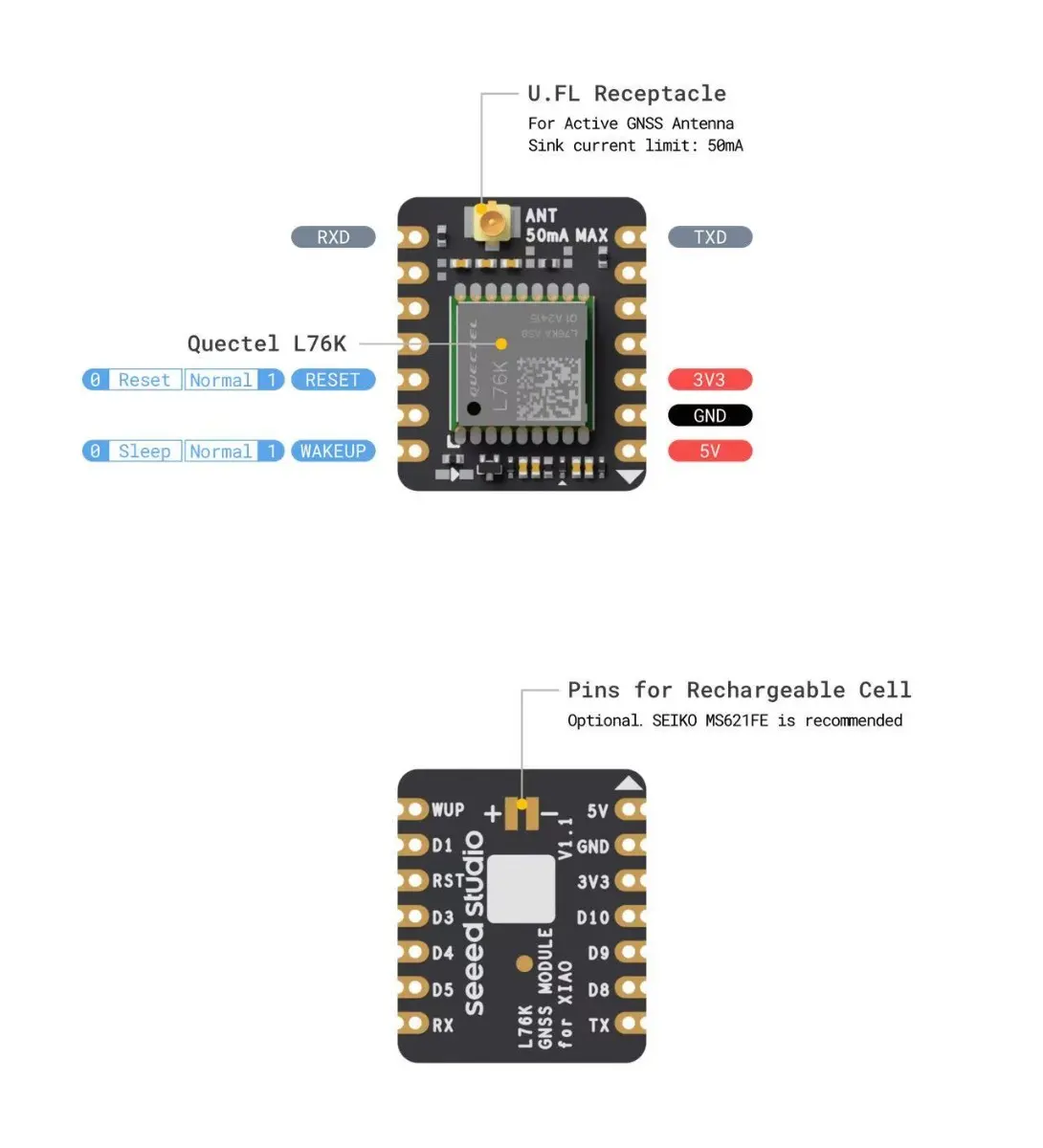
Seeed Studio have provided partial instructions here
There is a picture from which you can figure out the orientation of the boards. You will need to solder the pins highlighted here:
Now, make sure that the antenna provided with the L76K is attached before powering anything on.
Setting up Meshtastic
In the Meshtastic app (or web UI), go to Settings -> Device Settings -> Position
- Ensure that the "GPS Mode" is set to ENABLED
- Ensure that the "Fixed Position" toggle is disabled
- The "Receive Pin" should be set to 44
- The "Transmit Pin" should be set to 43
- The "Enable Pin" should be set to 1
You can set the "Broadcast Interval" and "GPS Update Interval" to whatever you feel like.